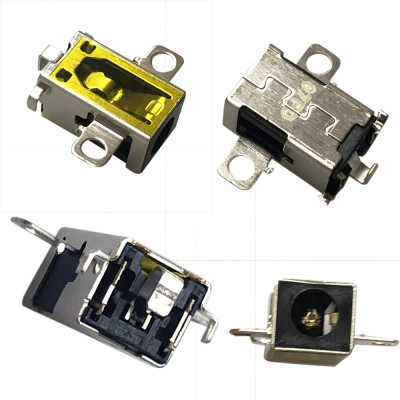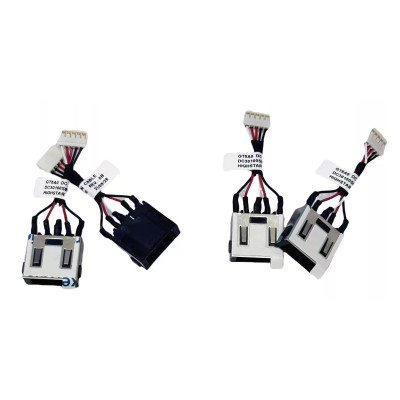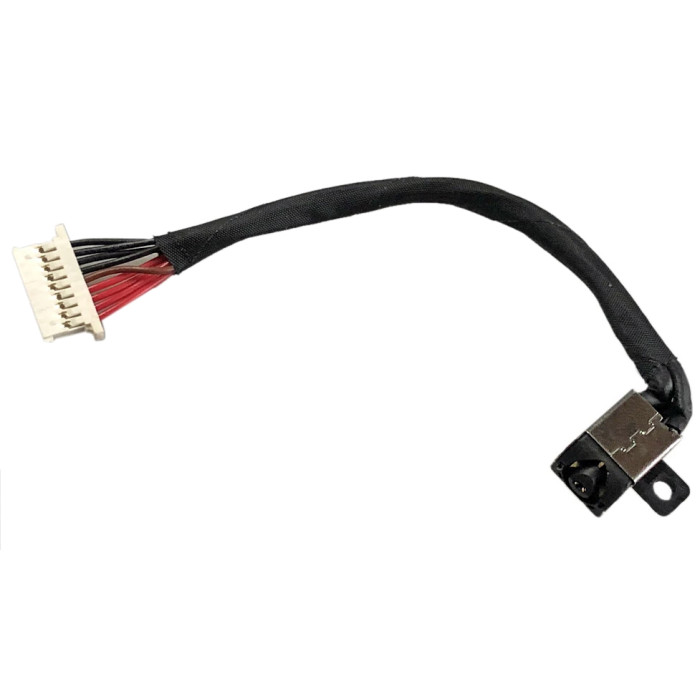

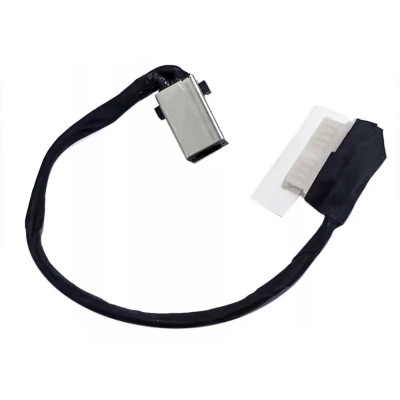
Dell Inspiron 15 7580 7590 7591 P83F P83F001 048JWV CN-048JWV DC Power Jack Charging Port Cable Socket Plug Connector 9cm

SKU: LT-10025886 In Stock
US $1.60
Model / Part # 048JWV
Condition NEW
Location shenzhen,China

DC Jack (Power Connector) – Selection & Installation Guide

Dell Inspiron 15 7580 7590 7591 P83F P83F001 048JWV CN-048JWV DC Power Jack Charging Port Cable Socket Plug Connector 9cm (Model: 048JWV) is a replacement DC power jack (also called charging port or power connector) designed for laptop motherboards. This component connects the AC adapter to the laptop's power supply circuit. Choosing the correct DC jack is critical – even a 0.1mm difference in size or a 1V voltage mismatch can cause charging failure or motherboard damage.

Technical Specifications:

  • Part Number / Model: 048JWV
  • SKU: LT-10025886
  • Product Status: Brand New
  • Warranty: 90‑day replacement

Critical Selection Factors – Check Before Ordering!

  • Interface Size (Outer Diameter × Inner Diameter) – Common sizes include:
    • 5.5×2.5mm – Dell, HP, Lenovo, most standard laptops
    • 5.5×2.1mm – Some HP, Acer, and smaller laptops
    • 4.0×1.7mm – Ultrabooks, thin laptops (Dell XPS, etc.)
    • 3.0×1.1mm – Very small laptops, some Lenovo Yoga
    • Square / proprietary shapes – Some brands (e.g., Lenovo rectangular, HP slim) use non‑round connectors
    Even a 0.1mm difference means the plug will not fit.
  • Voltage Rating – Must match your laptop's original specification:
    • 19.5V – Dell (most models), HP (most models), Acer
    • 20V – Lenovo, ASUS, many newer models
    • 19V – Older laptops, some Toshiba
    • 18.5V – Some HP older models
    • 16V – Some smaller laptops (e.g., Netbooks)
    Using a jack rated for the wrong voltage can cause overheating, charging failure, or motherboard damage.
  • Pin Count & Pin Definition:
    • 2‑pin – Simple power and ground. Common in older laptops.
    • 3‑pin – Power, ground, and a sensing pin (ID pin) that communicates with the charger to identify wattage. Common in Dell, HP, and Lenovo.
    • 4‑pin – Additional data lines for advanced communication.
    • Pin orientation matters – even with the same number of pins, the positions may differ between brands.
  • Mounting Type:
    • Through‑hole – soldered directly to the motherboard.
    • SMD (Surface Mount) – mounted on the surface of the board.
    • Cable‑mounted – connected via a flexible cable.
    • Verify the mounting style – the replacement must match exactly.
  • Physical Dimensions – The overall size, pin spacing, and orientation must match the original.

How to Identify Your DC Jack's Specifications:

  • Measure the outer diameter – use a digital caliper to measure the outside of the metal barrel (where the charger plugs in).
  • Measure the inner diameter – measure the inside hole of the barrel (using calipers or by checking the charger plug size).
  • Check the original part – look for printed labels or part numbers on the old DC jack (sometimes on the side or bottom).
  • Count the pins on the motherboard – look at the solder pads or connector.
  • Search your laptop model – use the laptop's full model number to find the original DC jack PN.
  • Send us photos – take clear photos of the original DC jack from multiple angles, showing the size, pin layout, and any labels.

Installation & Soldering Precautions:

  • Always power off and disconnect the battery before replacing the DC jack.
  • Use a temperature‑controlled soldering iron – set between 350°C and 380°C. Too hot can damage the motherboard; too cold will not melt the solder properly.
  • Apply flux – using flux improves solder flow and helps prevent cold joints.
  • Don't overheat the board – keep contact time under 3‑5 seconds per pin to avoid damaging the PCB pads.
  • Check for solder bridges – ensure no two pins are shorted together.
  • Use solder wick to remove old solder if the original jack is still in place.
  • Secure the jack with the mounting screws – if your design has screws, they provide mechanical stability and relieve strain on the solder joints.
  • Test before fully reassembling – plug in the charger and verify charging works before closing the case.

Common Problems & Solutions:

  • Charger not detecting / no charging light:
    • Check all solder joints – a cold joint may be the cause.
    • Verify the ID pin is connected correctly – on 3‑pin jacks, the sensing pin must be properly soldered.
    • Check the fuse on the motherboard – sometimes the DC jack shorts and blows the fuse.
  • Charger fits loosely / intermittent connection:
    • Check the inner pin – if it's pushed in or missing, the jack may be defective.
    • Ensure the jack is fully seated in the chassis opening.
  • Overheating / burning smell:
    • Check for a short circuit – the positive and ground pins must not touch.
    • Verify the voltage rating is correct – using a 20V jack on a 19V system may cause overheating.
  • AC adapter damaged / sparks:
    • Immediately disconnect the charger and check for shorts.
    • Ensure the jack is properly aligned and not bent.

Need help identifying or installing your DC jack? Send us clear photos of your original DC jack (showing the barrel size, pin layout, and any labels) – we'll confirm the exact specifications and compatibility. For custom orders or assistance, email us at email.
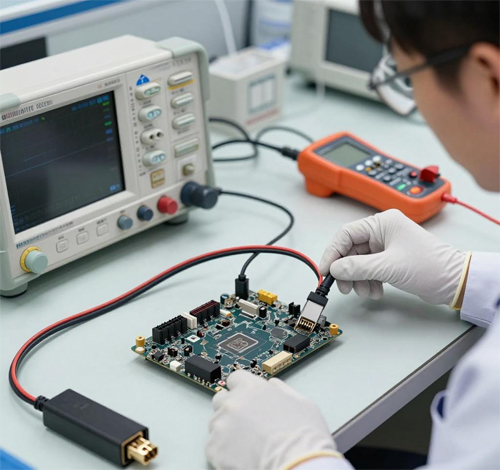
DC Jack quality inspection

100% Tested – Electrical & Mechanical Verified

Every DC jack is inspected for pin continuity, voltage tolerance, mechanical fitment, and solder pad alignment. We verify that each unit meets OEM specifications and will provide a secure, reliable power connection.
Continuity test Voltage rating check Mechanical fitment

DC Jack Selection & Installation Guide

Interface size, voltage, pin count, and installation best practices

1 Interface Size & Voltage – The Critical Pair

Interface Size (OD × ID)

Common sizes: 5.5×2.5mm (Dell/HP/Lenovo), 5.5×2.1mm (some HP/Acer), 4.0×1.7mm (ultrabooks), 3.0×1.1mm (thin laptops), and proprietary square shapes. Must match exactly.

Voltage Rating

Common voltages: 19.5V (Dell/HP/Acer), 20V (Lenovo/ASUS), 19V (older laptops), 18.5V (some HP). Must match the laptop's original specification.


2 Pin Count & Pin Definition

2‑Pin
Simple Power

Power + Ground only. No sensing pin. Older laptops or basic models. Fewer points of failure but no communication with the charger.

3‑Pin
With ID / Sense

Power + Ground + ID pin. Used in Dell, HP, Lenovo to identify charger wattage. The ID pin must be connected correctly.

4‑Pin+
Advanced Communication

Additional data lines for charger communication, power negotiation (USB‑C, etc.). Less common in traditional barrel jacks.

Important: Even with the same number of pins, the pin order and assignment may differ by brand. Always verify the pinout of your original jack.


3 Mounting Type & Installation Precautions

Through‑Hole

Pins go through holes in the motherboard and are soldered on the other side. Provides the strongest mechanical bond. Most common in older laptops.

SMD (Surface Mount)

Soldered on the surface of the PCB. Used in thinner laptops. More sensitive to heat and requires careful soldering.

Cable‑Mounted

Connected via a flexible cable to the motherboard. Common in ultrabooks. Easier to replace but the cable must be routed correctly.


4 Soldering & Troubleshooting Guide

Soldering Best Practices

Use a temperature‑controlled iron (350‑380°C). Apply flux. Keep contact time under 5 seconds per pin. Check for solder bridges. Secure with mounting screws.

No Charging / No Light

Check solder joints for cold joints. Verify the ID/sense pin is correctly connected. Check motherboard fuse if present.

Loose Connection / Intermittent

Check the inner pin for damage. Ensure the jack is fully seated in the chassis opening. Verify the solder joints are solid.

Overheating / Burning

Check for shorts between pins. Verify the voltage rating matches your laptop. Disconnect immediately if you smell burning.

Not sure which DC jack fits your laptop? Take clear photos of your original DC jack (showing the barrel size, pin layout, and any labels) and send them to us – we'll identify the correct specifications and confirm compatibility.
For custom orders or installation support, email us directly: email